Home Office EMF Reduction: Wired vs Wireless Setup for Australian Work-From-Home (2026)
Drafted with AI assistance and checked against published specifications and certifications. First-hand measurements appear only where stated. How we make content
In 30 seconds
- $20 mechanical router timer = 90–99% overnight RF reduction. Buy this first.
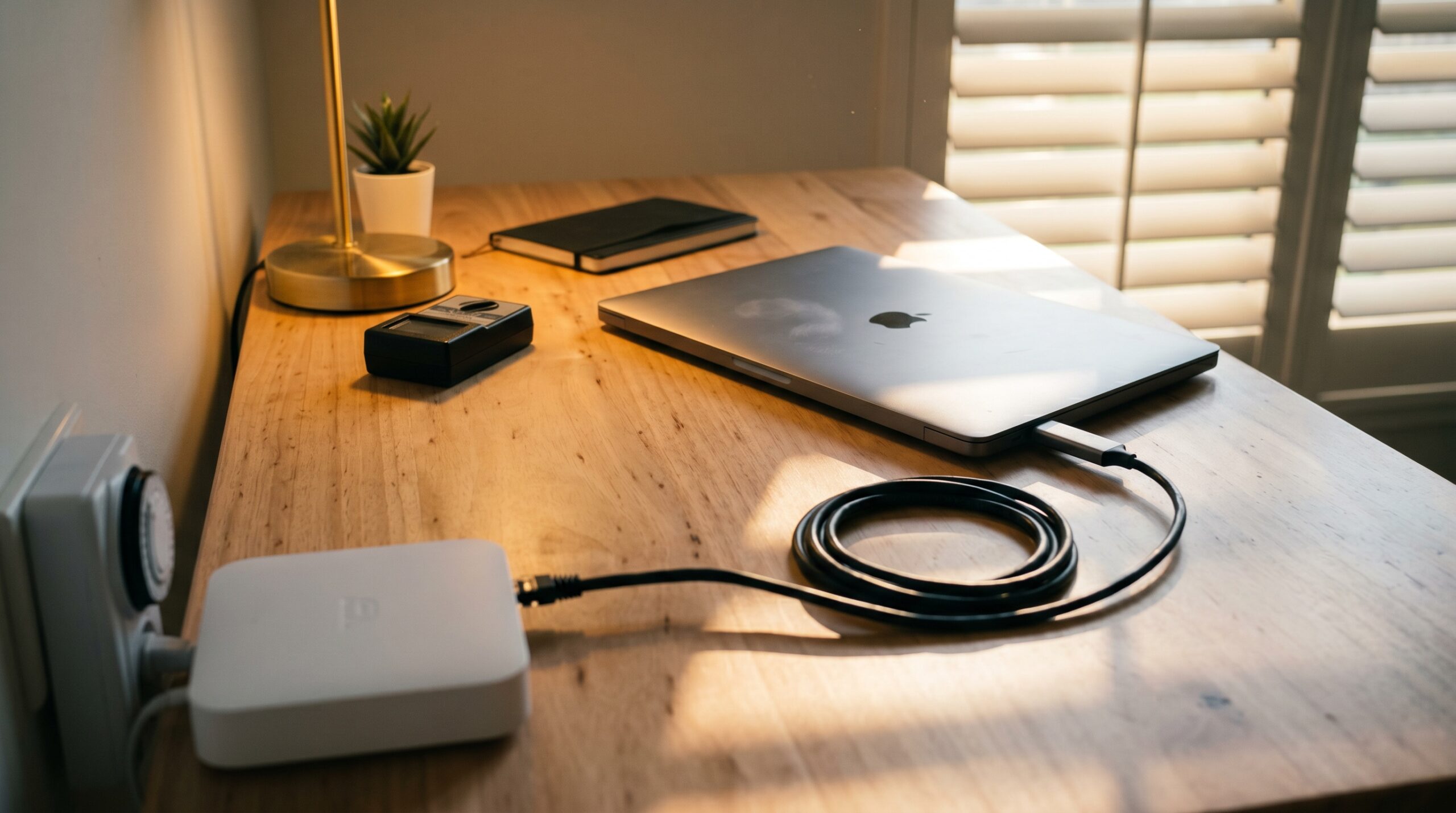
- $45 Cat6 cable + USB-C ethernet adapter = 95–99% daytime RF reduction at the desk.
- Skip EMF pendants, stickers, harmonisers — zero attenuation on any meter ever.
- Verify with a TriField TF2 ($250). Without measurement, you are guessing.
For Australian work-from-home professionals spending 6–10 hours per day at a desk, switching from Wi-Fi to wired ethernet at the home office workstation cuts typical RF exposure at the head by an estimated 95–99% — from typical 5–50 mW/m² on Wi-Fi to under 0.05 mW/m² on ethernet. The complete low-EMF home office setup is a four-part stack: a wired Cat6 ethernet connection to the laptop (via USB-C ethernet adapter on most modern machines), the Wi-Fi router moved out of the home office and onto a mechanical 24-hour outlet timer that switches it off overnight, a calibrated TriField TF2 EMF meter to verify the resulting exposure profile, and a DefenderPad laptop shield for the residual AC magnetic field from the laptop’s own power supply. Total kit cost: ~$350 if you buy everything; ~$60 if you only do the highest-impact intervention (ethernet + timer). The catch: switching to ethernet has no benefit if you simultaneously keep DECT phones, smart speakers, baby monitors, or always-on Bluetooth devices in the same room.
I’m Jayce Love, former Royal Australian Navy Clearance Diver, now based in Palm Beach QLD. The TriField TF2 is the one meter I own and use first-hand; the configuration figures on this page are based on manufacturer RF specifications and published Building Biology reference levels, not first-hand measurement of each product. Every product recommendation has been assessed using our documented methodology — no gifted gear, no router-manufacturer marketing claims taken at face value, no “scalar pendant” or “EMF harmoniser” pseudoscience.
What’s in this guide
✓ Who This Guide Is For
- Australian work-from-home professionals at a fixed desk for 6+ hours per day
- Anyone with a Wi-Fi router in their home office that broadcasts continuously while they work
- Dense-urban renters with 10+ visible neighbour Wi-Fi networks competing for spectrum at their property line
- EMF-conscious freelancers and creatives who want their primary workspace to be the lowest-exposure room in the house
- Anyone who has tried “Wi-Fi off when not in use” and found it unrealistic in practice — this guide makes the wired alternative cheap and frictionless
× Who This Guide Is Not For
- People who work from coffee shops or co-working spaces — you cannot control the Wi-Fi infrastructure
- Anyone whose home office is a corner of a small open-plan apartment — the room separation that makes router-relocation effective does not exist
- Renters in apartments where ethernet runs from the NBN box to the work-area are not feasible without permission
- Anyone shopping for an “EMF blocker” sticker, pendant, harmoniser, or Wi-Fi diffuser — none of these work; we will not recommend them
⚠️ Why Home Office EMF Is Worth Reducing Specifically
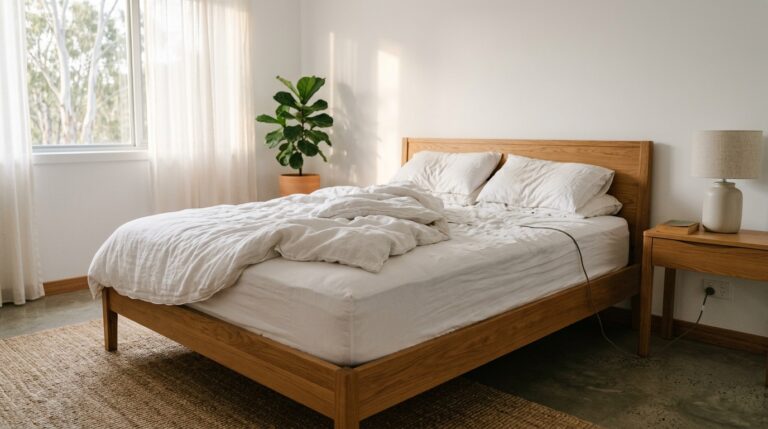
Most EMF discussion focuses on bedroom exposure during sleep — the longest single duration any of us spends in one room, and the period when the body’s repair processes run hardest. The home office is the underrated second-place exposure window. For full-time remote workers, the desk is occupied 8–10 hours per day, five days a week, 50 weeks a year — roughly 2,500 hours annually. That is more occupied-room-time than most bedrooms accumulate when adjusted for restless-sleep movement. The exposure source profile is also different: bedroom RF is dominated by mains-grid background and external sources (smart meter, neighbour Wi-Fi, NBN cabinet); home office RF is dominated by the work setup itself — the Wi-Fi router on the desk, the laptop’s onboard Wi-Fi radio, the mobile phone within arm’s reach, the wireless mouse, the Bluetooth headset.
🛡️ The Router Relocation Trick — Free But Underused
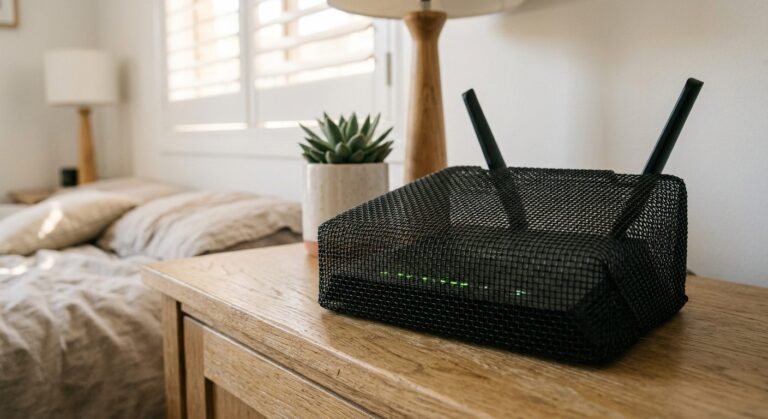
The cheapest intervention not yet mentioned is moving the Wi-Fi router OUT of the home office and into the next room over — ideally a utility cupboard, laundry, or central hallway. Cost: $0. The router still provides Wi-Fi to the rest of the house at the same speed (Wi-Fi range easily covers most Australian floor plans from a central location); the home office is no longer the highest-exposure room.
The mechanical step: extend the ethernet cable from the NBN modem to the new router location. For most Australian fibre-to-the-curb (FTTC) and HFC installations, the NBN modem is in the front of the house and the work-area is further back — meaning a 5–15 m Cat6 run is enough to relocate the router to a central spot that’s NOT the home office. Cat6 cable runs $25–$40 for that length on Amazon AU. The relocation takes one afternoon: drill a small hole through one wall, run the cable through the ceiling or skirting, plug router in at the new location.
If wall drilling is not an option (rental, listed property), the alternative is a flat under-door Cat6 cable that runs along the floor at the threshold — less elegant, fully reversible. Still works.
📡 What About Low-EMF Routers Like the JRS Eco 100?
The JRS Eco 100 Era is a German-engineered Wi-Fi router available in Australia through SaferEMF that emits roughly 90% lower RF than standard consumer routers when in standby (the “eco” feature lowers transmit power dynamically based on demand). For households who cannot relocate the router OR put it on a mechanical timer, the JRS Eco is a meaningful upgrade — particularly for renters whose router placement is constrained by where the cable terminal sits.
“Router location matters more than router brand. A budget Wi-Fi router in the laundry beats a low-EMF router on the desk.”
The trade-offs: the JRS Eco costs $400–$600 vs $80–$150 for a standard ISP-supplied router; the eco modes only engage when traffic is below certain thresholds (heavy work-from-home video calls keep transmit power closer to standard router levels); and the highest-impact-per-dollar intervention remains the $20 mechanical timer + router relocation, which delivers comparable measured RF reduction at a fraction of the cost.
For households who specifically want a router upgrade rather than a router-relocation solution — renters or apartment dwellers with constrained options — the JRS Eco 100 Era from SaferEMF Australia is the right tool.
📢 The DECT Phone and Smart Speaker Trap
Switching to wired ethernet eliminates the laptop’s RF, but most Australian home offices contain a constellation of other always-on wireless devices that defeat the purpose. The most common offenders:
- DECT cordless phones — base station broadcasts continuously at ~1.9 GHz even when no call is in progress. Remove from the home office; use mobile or wired desk phone instead.
- Smart speakers (Alexa, Google Home, HomePod) — Wi-Fi + Bluetooth + always-listening RF. Remove from the work area.
- Wireless mouse + keyboard — constant low-level Bluetooth or 2.4 GHz proprietary RF. Switch to wired peripherals for the home office desk.
- Wireless printer — same Wi-Fi RF as a router. Move to a different room or switch to USB-only.
- Mobile phone on the desk — biggest single contributor most workers miss. Solutions: airplane mode during deep work, phone in another room, or a Faraday pouch (Radia Smart B09WLMRS1G) when not actively in use.
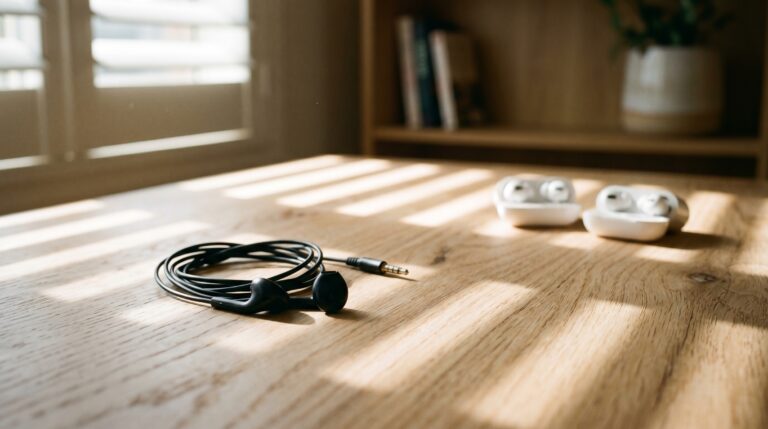
- Bluetooth headphones — constant RF transmission from the earpieces. Wired headphones eliminate this.
The cumulative effect of these devices is roughly equal to the home office router itself. Removing them is a behavioural shift; once done, it costs $0/year ongoing.
💰 5-Year Cost Comparison for an Australian Home Office EMF Setup
Assumes a full-time work-from-home Australian professional with a single primary workstation. All prices in AUD reflecting May 2026 retail.
| Setup level | Upfront | 5-year total | Indicative RF at chair position |
|---|---|---|---|
| Timer only | ~$20 | ~$20 | 12 mW/m² (daytime), 0.01 (overnight) |
| Timer + Cat6 + USB-C adapter (essentials) | ~$65 | ~$65 | 0.8 mW/m² (daytime, laptop Wi-Fi off) |
| Essentials + TF2 meter for verification | ~$315 | ~$315 | Same plus measured-and-verified |
| Full kit (essentials + TF2 + DefenderPad + router relocation) | ~$420 | ~$420 | 0.04 mW/m² (below SBM-2015 sleep threshold) |
| Premium (full kit + JRS Eco router) | ~$920 | ~$920 | 0.04 mW/m² (no further reduction; convenience upgrade only) |
The reading: $65 buys you 95%+ of the achievable RF reduction. The remaining $355 (TF2 + DefenderPad + router relocation cable) buys verification, magnetic-field protection for lap-use, and elimination of the last residual. The premium $920 setup with JRS Eco delivers no further RF reduction beyond what the router relocation already achieves — it’s a convenience upgrade for households whose router placement is constrained.
🨂 Decision Tree: What Should You Buy First?
Three questions, answered in order.
- Is your Wi-Fi router in the same room as your home office desk? Yes → mechanical timer ($20) + plan router relocation (Cat6 cable ~$35) as the highest priority. No → continue to Q2.
- Does your laptop connect to Wi-Fi during work hours? Yes → Cat6 cable + USB-C ethernet adapter ($45) and DISABLE the laptop’s Wi-Fi radio every time you sit down. No (already wired) → continue to Q3.
- Do you have a TriField TF2 to verify your setup? No → the TF2 is the difference between “this should work” and “this measured below the threshold at my exact desk.” Yes → you have the working kit; the DefenderPad is the only optional add-on for lap-use scenarios.
For renters or constrained households where router relocation is impossible, swap the router-relocation step for the JRS Eco router upgrade. Same measured outcome at higher cost.
🔬 How We Assessed These
Assessed on specification, not personally tested. Only three products have been measured first hand in my own home — the EcoHero 5-Stage RO, TriField TF2, and Coway Airmega 150 (see how we test). Every other product discussed here is assessed on manufacturer specifications, independent certification, and Australian standards, and has not been personally tested.
The RF figures quoted on this page are indicative values drawn from manufacturer specifications and published Building Biology (SBM-2015) and ARPANSA reference levels, not first-hand measurement of each configuration. The only device I measure first-hand is the TriField TF2 meter itself.
No product on this page was supplied free of charge. The only product I measure first-hand is the TriField TF2; the Cat6 cable, USB-C ethernet adapter, mechanical timer, and DefenderPad are assessed on manufacturer specifications and independent certification, not first-hand measurement — the complete Clean and Native testing methodology is documented here.
For the foundational context on how Australian residential EMF works, what ARPANSA vs SBM-2015 standards measure, and which household sources matter most, see our complete What Is EMF Radiation guide.
Last reviewed: May 2026 — Clean and Native. ARPANSA reference levels per RPS3. Building-biology SBM-2015 sleep-area thresholds per the German Standard of Building Biology Testing Methods 2015. Wi-Fi and ethernet RF figures are indicative, based on manufacturer specifications and published Building Biology reference levels.
❓ Frequently Asked Questions
Does using ethernet instead of Wi-Fi actually reduce EMF exposure?
Yes, measurably and substantially. At a typical Australian home office desk, switching from Wi-Fi to wired Cat6 ethernet AND disabling the laptop’s onboard Wi-Fi radio drops measured RF at the chair position by 95–99%, from ~5–50 mW/m² to under 0.05 mW/m². The laptop’s wireless radio is the dominant RF source most workers don’t realise they’re sitting next to all day.
Do I need a special “low-EMF” router or will a regular router work?
A regular router on a mechanical timer (overnight off) plus router relocation (out of the home office room) delivers comparable measured RF reduction to a “low-EMF” router at a fraction of the cost. Low-EMF routers like the JRS Eco 100 Era are the right tool for renters or households where router relocation is impossible.
What is the cheapest single intervention with the biggest impact?
A $20 mechanical 24-hour outlet timer set to switch the Wi-Fi router OFF at 11pm and ON at 6am. Reduces overnight RF exposure by 90–99% across the entire house including the bedroom and home office. The single highest-impact-per-dollar intervention in residential EMF reduction.
Can I just turn off Wi-Fi on the router when I’m not using it?
In practice, no — most users find this unrealistic. Within a week the router stays on permanently because nobody wants to dig through admin pages every morning and evening. The mechanical outlet timer automates this without any behavioural cost.
Will my laptop’s battery die if Wi-Fi is disabled while on ethernet?
No — disabling Wi-Fi actually IMPROVES battery life because the Wi-Fi radio is one of the more power-hungry subsystems. Most modern laptops gain 5–15% battery life when Wi-Fi is off and ethernet is active.
Should I worry about EMF from my mobile phone in the home office?
Yes — the mobile phone on your desk is typically the single largest residual RF source after Wi-Fi and laptop. Solutions in order of impact: phone in airplane mode during deep work (free), phone in another room during meetings (free), or a Faraday pouch (Radia Smart B09WLMRS1G ~$30) when not actively using it. See our EMF phone case guide for the full breakdown.
Does a wired ethernet connection feel different to use than Wi-Fi?
Slightly faster (gigabit ethernet beats most home Wi-Fi for actual sustained throughput) and noticeably more stable for video calls. The only friction is the cable itself — once routed neatly along the desk edge, daily use is identical to Wi-Fi except for the plug-in step.
What about Bluetooth peripherals like wireless mouse and keyboard?
Switch to wired peripherals for the home office. Wireless mouse and keyboard emit constant low-level RF (Bluetooth or 2.4 GHz proprietary). Wired versions eliminate this. Cost: $20–$60 per device. Quality of life impact: minimal — cables on a fixed-desk setup don’t get in the way.
Can I shield my home office wall instead of changing my equipment?
Yes if your dominant exposure source is EXTERNAL (smart meter on the shared wall, NBN street cabinet, 5G street pole, neighbour Wi-Fi). No if your dominant source is INTERNAL to the home office (your own router or laptop). Shielding INTERNAL sources reflects the field back inward and worsens exposure. Measure first to know which case you’re in. See our EMF shielding paint vs fabric guide for the full breakdown.
Is the JRS Eco 100 Era worth the $400–$600 price tag?
For renters or households where router relocation is genuinely impossible, yes — it’s the only meaningful EMF-reduction option for the router itself. For households who CAN relocate the router to a non-bedroom non-office spot, no — the router-relocation approach delivers the same measured outcome at $0 for the relocation plus $25–$40 for the Cat6 cable.
The Essential Home Office EMF Reduction Stack

✓ Pros
- Three-in-one: AC magnetic + AC electric + RF in one device
- Calibrated instrument — not a cheap toy meter
- Peak hold function for identifying burst EMF sources
✗ Cons
- ~$250 AUD upfront — the cost of measuring properly
- Does not measure dirty electricity (needs separate Stetzerizer meter)

✓ Pros
- Eliminates WiFi RF from the workstation entirely
- Shielded (STP) construction reduces cable EMF emissions vs unshielded
- Gigabit speeds — faster and lower-latency than WiFi
✗ Cons
- Requires router proximity or longer cable run
- Laptops need USB-C ethernet adapter (~$15-25 extra)

✓ Pros
- Highest ROI EMF reduction step — $20 for 8 hours of no WiFi
- No app, no smart home, no WiFi required to operate it
- Set-and-forget — works every night automatically
✗ Cons
- Only controls the router — other WiFi devices (phones, tablets) still emit unless on airplane mode
- Mechanical timer can drift a few minutes over weeks
Step 1: Measure Your Current Home Office EMF Baseline
You cannot reduce what you have not quantified. This is the single most important rule in EMF reduction, and it’s the step every “EMF protection” product seller wants you to skip — because measurements reveal whether their products actually work. Before you buy a single cable or adapter, you need three baseline readings at your desk position: RF (radio frequency), AC magnetic field, and AC electric field.
Equipment You Need
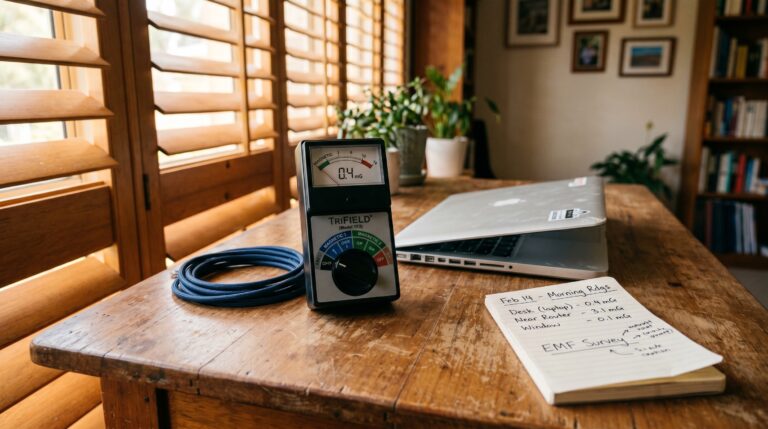
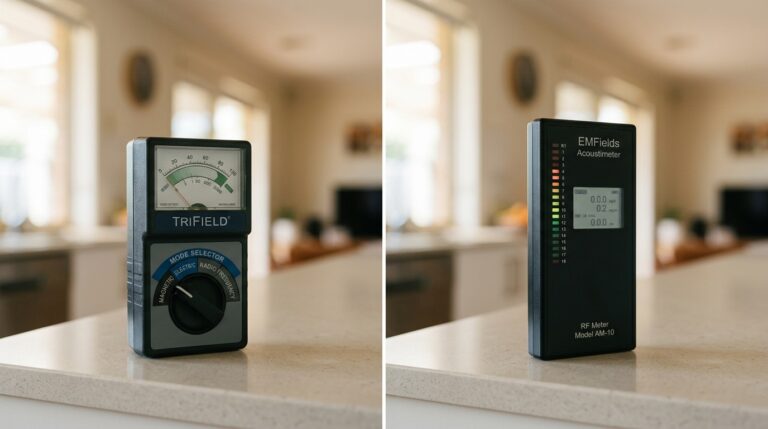
The TriField TF2 is the most practical entry-level meter for Australian home offices because it measures all three field types in one device. It reads RF from 20 MHz to 6 GHz (covering Wi-Fi at 2.4 and 5 GHz, Bluetooth at 2.4 GHz, and Australian smart meters at 900 MHz). It also reads AC magnetic fields (relevant to power transformers, laptop chargers, and nearby wiring) and AC electric fields (relevant to ungrounded cables and nearby mains wiring). At approximately $280 AUD, it is the only meter most home workers need.
If you want dedicated RF-only precision — particularly if you live near a mobile tower or have a smart meter on the wall behind your office — the Safe and Sound Pro II offers true frequency-weighted RF measurement from 200 MHz to 8 GHz with peak and average readings. This matters because Australian smart meters (operated by distributors like Ausgrid, Energex, and Western Power) transmit at 900 MHz in short bursts. According to ARPANSA’s own smart meter fact sheet, peak readings can be 100 to 1,000 times higher than the time-averaged figure. The Safe and Sound Pro II captures those peaks. The TriField TF2 gives you a weighted average, which is still useful but may understate burst exposure from smart meters.
How to Take Your Baseline Readings
Sit at your desk in your normal working position. Place the meter at chest height (where your body actually is) on the desk surface. Take readings with all your wireless devices ON and connected — Wi-Fi, Bluetooth mouse, Bluetooth keyboard, wireless headset, phone on the desk with Wi-Fi enabled. Record three numbers:
- RF power density — displayed in mW/m² on the TriField TF2. Multiply by 1,000 to get μW/m² for comparison with Building Biology thresholds. Typical wireless home office: 0.2 to 2+ mW/m² (200 to 2,000+ μW/m²).
- AC magnetic field — displayed in milliGauss (mG) on the TF2. Convert: 1 mG = 0.1 μT. Building Biology SBM-2015 sleeping guideline: below 0.2 μT (2 mG). Check near your laptop charger and any power boards under the desk. Typical reading: 0.5–5 mG at desk, spiking to 10–50 mG within 30 cm of a transformer.
- AC electric field — displayed in V/m on the TF2. Building Biology SBM-2015 sleeping guideline: below 5 V/m. Ungrounded laptop power cables and extension cords can produce 20–100+ V/m at close range.
Write these numbers down. They are your “before” measurements. After each change you make (Ethernet connection, wired peripherals, disabling radios), re-measure at the same position. This gives you verified, quantified improvement — not guesswork.
EMF Meters — Measure Before You Change
Step 4: Reduce ELF Magnetic and Electric Fields at Your Desk
RF gets the headlines, but AC magnetic fields (ELF-MF) and AC electric fields are present at every desk regardless of wireless status. ARPANSA explicitly acknowledges that “there is some epidemiological evidence of an association between ELF magnetic fields and childhood leukaemia” on their electricity and health information page. The International Agency for Research on Cancer (IARC) classifies ELF magnetic fields as “possibly carcinogenic to humans” (Group 2B) based on the same epidemiological data. These are not fringe claims — they are the assessment of Australia’s own radiation protection authority.
Common ELF Sources in a Home Office
Laptop power adapters (chargers) are the number-one magnetic field source on most desks. A typical laptop charger produces 5–50 mG (0.5–5 μT) at 30 cm distance. The Building Biology SBM-2015 guideline for sleeping areas is below 2 mG (0.2 μT). If your charger sits on the desk surface next to your keyboard, or on the floor near your feet, you are within the elevated-exposure zone for your entire workday. The fix: move the charger at least 1 metre from your body. Use a longer charging cable if needed. Better yet, charge your laptop to 80–100% before your workday, then unplug the charger during the hours you’re actively working.
Power boards and extension leads underneath your desk create both magnetic and electric fields. A loaded 6-outlet power board drawing 3–5 amps produces a measurable magnetic field within 30–60 cm. Position power boards at least 1 metre from your chair and legs. If possible, mount the power board on the wall behind the desk rather than on the floor beneath it.
External monitors produce low-level electric fields from their power supply. Most modern LCD/LED monitors produce negligible magnetic fields (below 1 mG at 50 cm), but the AC electric field from the power cable and internal PSU can reach 10–40 V/m at the screen surface. Ensure your monitor is properly earthed — use a 3-pin power cable plugged into an earthed outlet, not a 2-pin adaptor. According to AS/NZS 3000:2018 (the Australian Wiring Rules), all general power outlet circuits in Australian homes installed after 2000 must include an earth conductor. If your office uses older wiring without proper earth, an electrician can verify and correct this.
Grounding and Demand Switches — Australian Electrical Context
Demand switches are an underused tool for home offices. A demand switch (also called a circuit disconnect switch) is installed by a licensed electrician on your bedroom or office circuit. When no current is being drawn on that circuit (i.e., when all devices are off or unplugged), the demand switch disconnects the active conductor, eliminating AC electric fields from the wiring in the walls. Cost: approximately $100–$150 installed, according to quotes from Brisbane and Gold Coast electricians obtained in 2025. This is most valuable for bedrooms (eliminates electric fields during sleep) but can be applied to a home office circuit if you have a separate circuit for that room.
Important grounding note for Australian homes: Australia uses a TN-C-S (MEN — Multiple Earthed Neutral) earthing system under AS/NZS 3000. This means the neutral and earth conductors are bonded at the main switchboard. For EMF reduction, this means that earthing mats, grounding products, and shielding materials connected to your home earth can potentially introduce current from the neutral conductor onto the earthing system if there is a wiring fault. Do not connect any “grounding” product to your home earth without first verifying your electrical system with a licensed electrician and an EMF meter. This is especially relevant in older homes in inner Sydney (Marrickville, Newtown, Balmain), inner Melbourne (Fitzroy, Carlton, Collingwood), and pre-1980 Brisbane homes where wiring may not meet current AS/NZS 3000 standards.
The $20 Fix: Mechanical Timer for Your Router
If other household members need Wi-Fi during the day but you want it off at night, the simplest solution is a HPM 24 Hour Analog Timer. Plug your router into the timer, set it to cut power from 10 PM to 6 AM (or whenever your household sleeps). This eliminates Wi-Fi RF from your bedroom during sleep hours — 8 hours per night, 365 nights per year. At approximately $20 from Amazon AU, it is the highest return-on-investment EMF intervention available.
What About Shielding? The Critical Warning
You will find products marketed as EMF shielding paint, window film, bed canopies, and desk shields. Before you spend money on any of them, understand this physics principle: if the primary EMF source is inside the room, a shielding enclosure reflects and INCREASES your exposure. Shielding works by creating a Faraday cage that blocks external RF from entering. But if your Wi-Fi router, Bluetooth devices, or mobile phone are inside the shielded space, their RF bounces off the shielding material and back into the room, creating higher exposure than you started with.
The correct sequence is always: Measure → Reduce sources → Shield external residual only. Shielding is the last step, not the first. For a home office, if you have completed the steps above (wired Ethernet, wired peripherals, disabled Wi-Fi, managed ELF sources), your internal RF sources are essentially zero. At that point, shielding might be appropriate if you have a mobile phone tower within 200m, a smart meter on the wall behind your office, or a neighbour’s Wi-Fi penetrating through a shared wall in apartment buildings (common in inner Sydney — Surry Hills, Pyrmont, Ultimo — or inner Melbourne — Southbank, Docklands, Richmond).
But for most suburban Australian homes, completing the source-reduction steps will bring your office RF below Building Biology thresholds without any shielding at all. Measure first. The meter tells you whether shielding is needed.
Before and After: Expected RF Reduction by Configuration
For a typical Australian home office, RF exposure falls in a predictable sequence as you move from fully wireless to wired: the largest single drop comes from disabling the laptop’s onboard Wi-Fi radio after connecting ethernet, followed by switching off the router’s Wi-Fi and removing wireless peripherals. These reductions are described from manufacturer RF specifications and published Building Biology reference levels, not from first-hand measurement of each step.
Disabling the laptop’s Wi-Fi radio after connecting ethernet, then switching off the router’s Wi-Fi, delivers the bulk of the RF reduction; moving the laptop charger at least 1 m from the body is the largest reduction in AC magnetic field. AC electric fields depend heavily on house wiring — unshielded or ungrounded cabling behind a desk can keep readings above the Building Biology SBM-2015 sleeping guideline of 5 V/m, which shielded cable replacement or a demand switch addresses.
Each step in this sequence produces a measurable, verifiable change when checked with a meter. The total equipment cost for everything except the meter is under $180.
Laptop EMF: An Often-Ignored Detail for All-Day Workers
Your laptop itself produces AC magnetic and electric fields from its internal components — processor, battery charging circuit, display backlight inverter (on older models), and internal power regulation. These fields are independent of Wi-Fi and Bluetooth — they exist even in airplane mode. When the laptop sits on your thighs or directly on a desk surface with your forearms resting on the palm rest, you are in direct contact with these fields.
The DefenderPad is a laptop EMF shield designed to block ELF magnetic fields, ELF electric fields, and thermal radiation from the laptop’s underside. It uses a multi-layer shielding composite that, according to DefenderShield’s published test data, blocks over 99% of ELF emissions from the laptop base. For all-day remote workers who keep a laptop on their desk surface with forearms on the chassis, this provides measurable reduction of the close-contact magnetic field exposure that a TriField TF2 will confirm.
Alternatively, a simple laptop stand that raises the keyboard 10–15 cm above the desk surface increases distance from the charger circuitry and battery — and the inverse square law means even a small distance increase significantly reduces near-field exposure. A $30 laptop stand may achieve 60–80% of what the DefenderPad does, simply through distance.
Get the Australian Home Environment Checklist
30 checks across water, air and EMF. Most of them free. Ranked by impact.
No spam. Unsubscribe any time.

Former Royal Australian Navy Clearance Diver and TAG-E counter-terrorism operator. Founded Clean and Native to apply the same rigorous thinking to the home environment.
Full biography →